Tenants & members
A tenant is your organization's workspace. Everything else lives inside it: apps, ingest tokens, policies, dimensions, and quotas. Members are the people who can sign in to it, each with a role that decides what they can do.
Tenants #
A tenant owns all of your apps and their configuration, and most access and billing decisions are made at this level. If you belong to more than one, the topbar tenant switcher moves you between them. The console scopes everything you see to the current tenant.
Roles #
Every member holds exactly one of four roles. Roles are ranked: each one can do everything the role below it can, plus more.
| Role | What it can do |
|---|---|
| Viewer | Read-only. Sees tenant settings, apps, tokens, policies, dimensions, IP filters, and the dashboards, but cannot change anything. |
| Member | The same read access as Viewer. Intended for people who belong to the tenant but do not manage its configuration. |
| Admin | Manages day-to-day configuration: create and edit apps, ingest tokens, policies, dimensions, and IP filters, and add, change, or remove members. Admins cannot grant or change the Owner role, delete an app, or delete the tenant. |
| Owner | Full control. Everything an Admin can do, plus granting and changing the Owner role, deleting apps, and deleting the tenant. |
Add a member #
You need the Admin role to manage members.
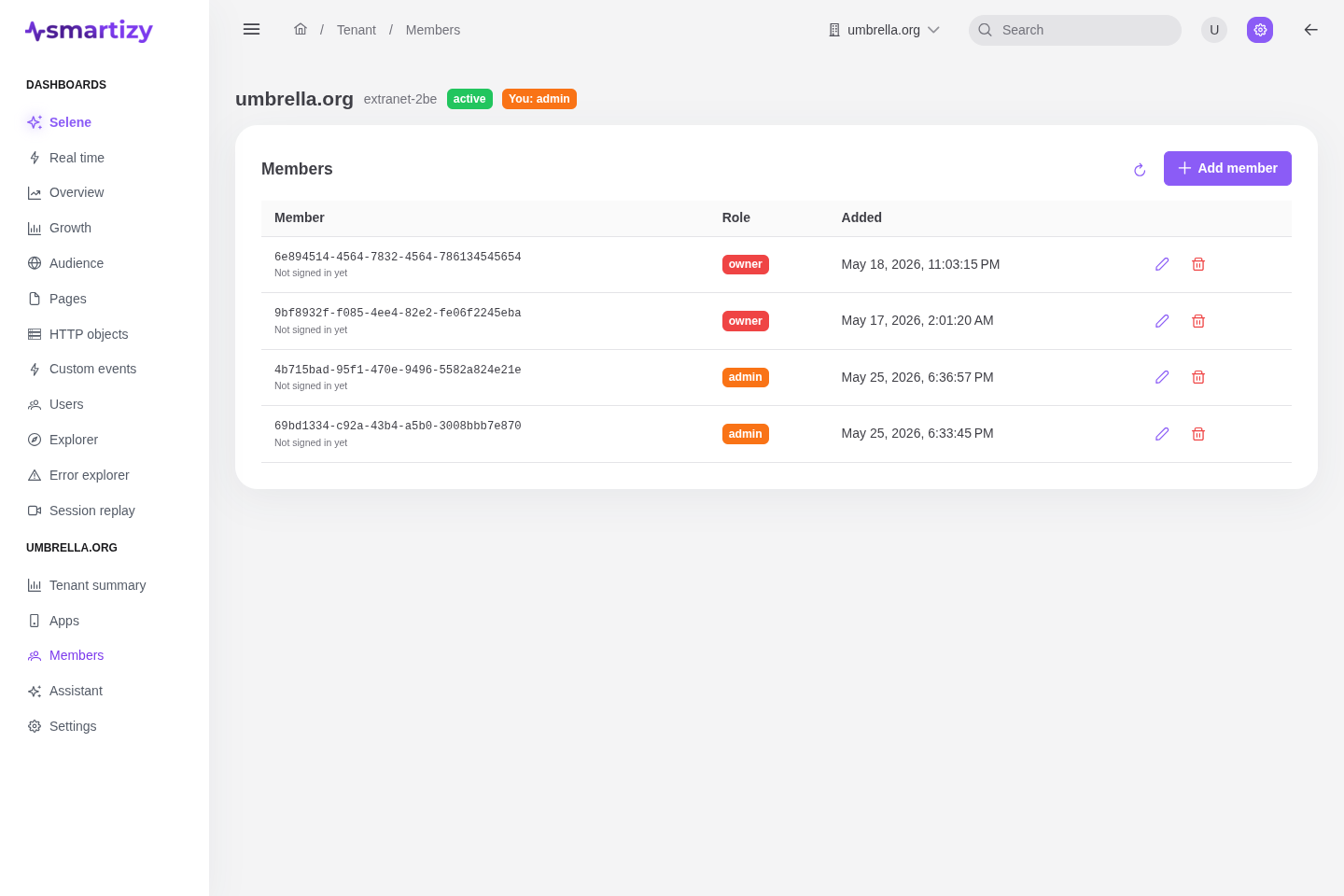
- Open Members in your tenant and click Add member.
- Enter the person's user ID, the identity subject from your OIDC issuer. This is the
subclaim their sign-in carries. - Pick a role and save. The Owner option is available only when you are an Owner yourself.
Change a role #
Open Members, use the edit action on the member's row, choose a new role, and save. The same Owner rules apply: only an Owner can promote someone to Owner or change an existing Owner's role, and the last Owner cannot be demoted.
Remove a member #
Use the delete action on the member's row and confirm. Removing a member revokes their access to the tenant immediately; it does not delete any data they collected. Only an Owner can remove an Owner, and the last Owner cannot be removed.