Custom dimensions
Custom dimensions declare the keys an app may attach to its events, so they project onto typed
columns and you can slice dashboards by your own business attributes such as plan or
tenant_tier.
What dimensions are for #
A dimension is a typed field you define once and then send on events. Declaring it tells Smartizy the key exists and what type to expect, which is what lets the value land in a typed column you can filter and group by. You manage dimensions per app on the app's Dimensions tab; the Admin role is required to add or change one.
The key #
The key is the field name you send on events. It must be 1 to 64 characters: a lowercase letter,
then lowercase letters, digits, or _. For example plan,
tenant_tier, or ab_variant. The key is immutable once
created, so to rename a dimension you delete it and create a new one.
Fields #
| Field | What it means |
|---|---|
| Kind | Dimension for a categorical attribute you group and filter by, or Metric for a numeric value you aggregate. |
| Type | The value type the receiver expects: string, number, or bool. |
| Required | Marks the dimension as expected on the events it applies to. Documents intent for your team. |
| Contains PII | Flags the dimension as carrying personal data, so it is treated with care across the product. Set it on anything that could identify a person. |
| Description | Optional free text explaining what the dimension holds, shown in the list. |
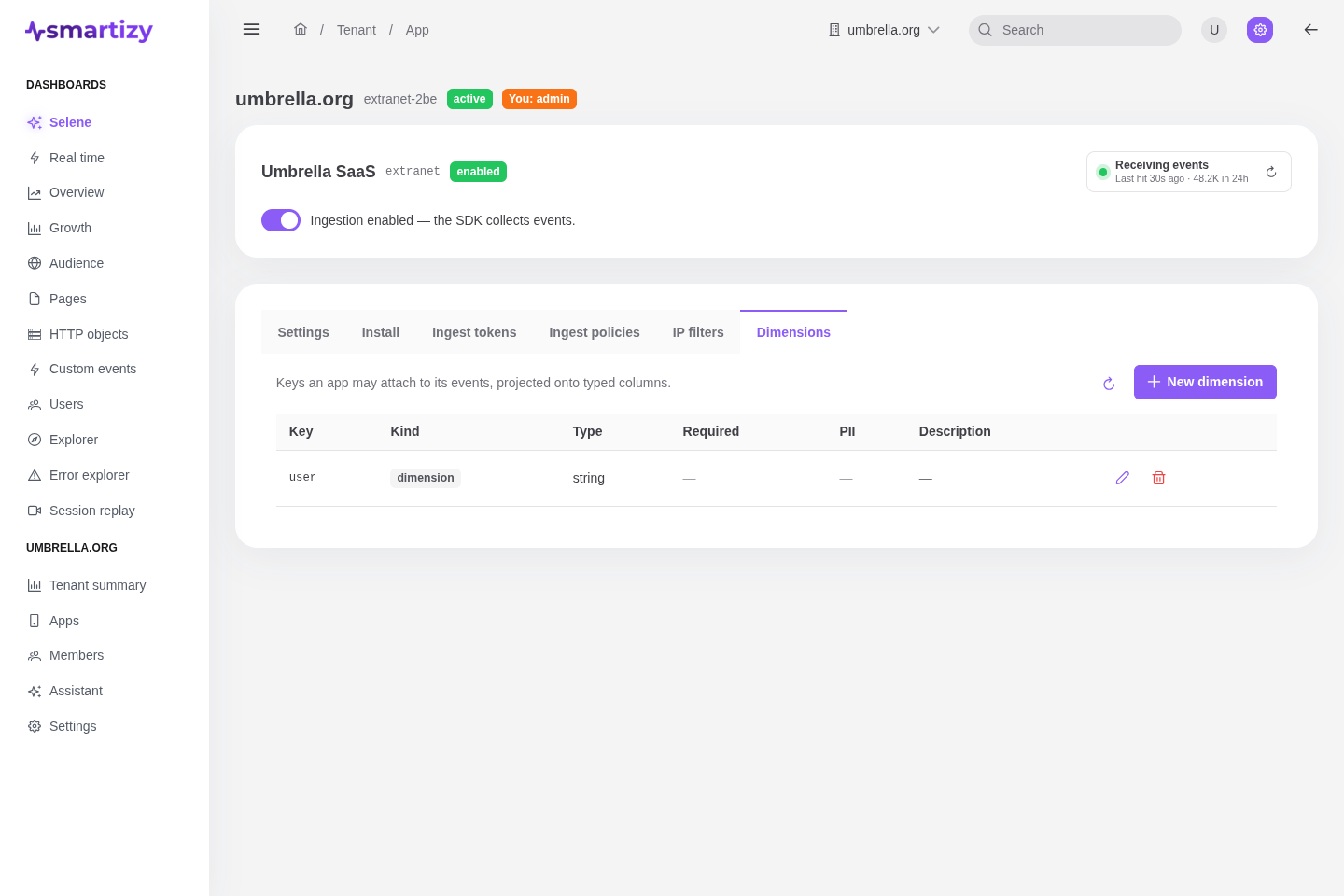
Declare a dimension #
- Open the app, select the Dimensions tab, and click New dimension.
- Enter the key and choose its kind and type.
- Set Required and Contains PII as appropriate, add an optional description, and create it.
You can edit every field except the key later, and delete a dimension you no longer send.
Custom-event dimensions #
When you fire a custom event with amb('event', name, { dims }), the keys in
dims are the dimensions you declared here. Declaring them is what lets the custom-events
dashboard break an event down by those keys, so the two work together: declare the key, then attach
it on the event.